

|
As the holidays approach and anticipation has grown to new limits for the newest installment to the Legend of Zelda franchise as well as the much-anticipated Grand Theft Auto 6, modders are some of the first to experience The Legend of Zelda: Ocarina of Time, albeit with some quirks to be sorted later.
Hyrule may have never looked so good, but there currently are quirks, as mentioned above. At the time of writing, there are a very few shaders that are tricky to get fully-supported within the emulation. This does not cause graphical artifacting, however, but gameplay in more open areas is prone to pretty immense slowdowns with audio temporarily dropping in and out. That said, in testing, it was possible to go all the way through the first dungeon and reach Hyrule Castle Town without a single crash. Your mileage may vary.
The emulator build used for testing was Lichii Build 83. In initial tests which included a full run-through of the Deku Tree dungeon, slowdowns were fewer and less severe than the more open and foggy area of the Kokiri Forest. Smaller internal rooms without multiple objects drawn in the distance granted exceptional performance above 45fps and often juggled around 60fps. Video cutscenes operate virtually flawlessly with roughly zero slowdown, though some may require a brief moment to build a shader or two depending on how strong the processor is in the PC. Gameplay, even when jittery or temporarily freezing before resuming, was not marred by glitching graphical artifacts or annoying shrieks in audio. In open areas of Kokiri Forest, an area with heavy vegetation and fog, panning the camera to view more of the scene can drop frames per second quite substantially, sometimes as low as 2-8fps, or even freeze briefly. In smaller areas, like inside of buildings, slowdowns nearly disappear. Largely, the game operated exceptionally well given that this level of gameplay has been achieved literally on day 1 of launch. If you are someone expecting to jump into this immediately and begin your adventure, please note that the game will likely run, on average, at what most people would consider a generally substandard level of performance overall. Rest assured that work is being done to remedy these minor downsides and that great performance should be expected within time.
It is unknown at this current time whether Brewology will be hosting the Lichii emulator files ourselves. Additionally, of course we also will remain committed to not providing direct access to game backup files. Those will need to be backed up and obtained on your own. That said, it is wildly impressive that The Legend of Zelda: Ocarina of Time is running this well so early on. This is definitely something to keep your eyes on the horizon for as this is a title in which a buttery-smooth 60fps gameplay seems just around the corner. |
|
| Posted in Brewology, pc, Switch | No Comments » Tags: Emulation, Lichii, Ocarina of Time, pc, Switch 2, The Legend of Zelda, Zelda | |


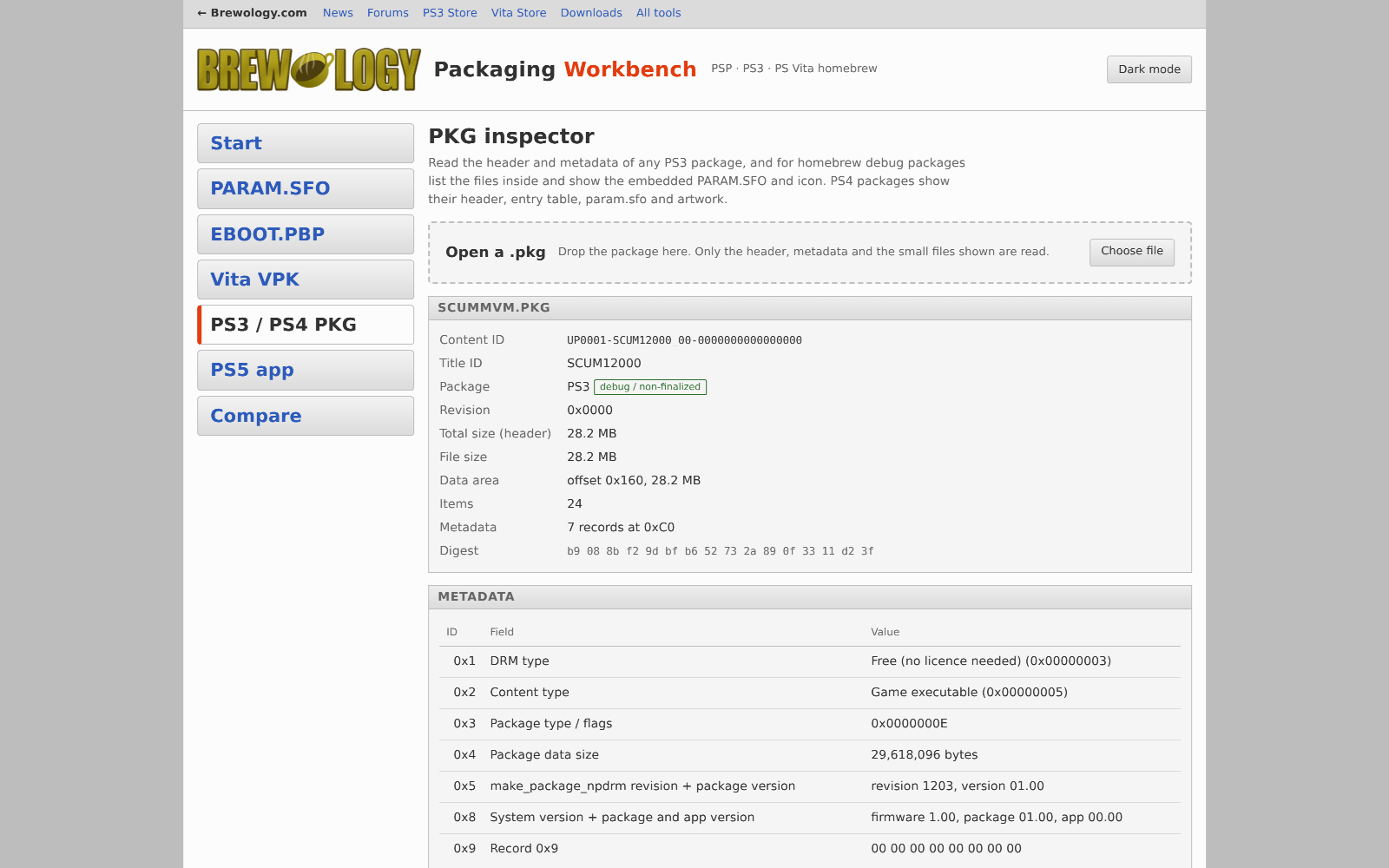 If you build, re-icon, check or submit PlayStation homebrew, there is a new section on the site: Homebrew Tools. The first tool there is the Packaging Workbench, and it runs in your browser. Nothing to install, nothing to download, works on Windows, Mac, Linux and phones. What it does today:
It also runs the same checks the Brewology store runs on submissions, so you can fix problems before you submit instead of after. Open it here: brewology.com/tools/workbench Found a bug, have ideas, or want a tool that isn’t there yet? Tell us on the forums. |
|
| Posted in PS3, PS4, PS5, PSP, PSVita | No Comments » Tags: pkg, PlayStation, PS3, PSP, PSVita, repackage, repacker, SFO, VPK | |
|
6 PSVita homebrew apps were updated in the Brewology PSVita Store: FF5-VITA 1.1 · Super Mario Galaxy Vita 1.4 · Ultimate Spider-Man Vita 1.1 · VitaSend 0.9.6 · Pokemon Colosseum Vita .1.0 · Crash Bandicoot: The Wrath of Cortex Vita 0.1.0-beta. |
|
| Posted in Brewology, PSVita | No Comments » | |
|
13 PSVita homebrew apps were updated in the Brewology PSVita Store: Zenonia 4 Vita 1.2.0 · Zenonia 3 Vita 01.40 · Tweebbo Vita 1.4.13 · Riptide GP Vita 1.0.3 · Inotia 3 Vita 1.0.3 · The Impossible Game Vita 1.3.1 · Badland 2 Vita 1.2.0 · Rayman Jungle Run Vita 1.2.0 · Pocket Shelf shelf-v0.6.1-beta.1 · DNMP Vita 0.1 · VitaSend 0.9.5 · WoWVita 0.2.0 and 1 more. |
|
| Posted in Brewology, PSVita | No Comments » | |
|
15 PSVita homebrew apps were updated in the Brewology PSVita Store: UMD Player 0.9.13 · METEOR VII VITA 1.2.0 · Tweebbo Vita 1.4.12 · MyShell 1.2.0 · Riptide GP Vita 1.0.2 · Carnivores: Ice Age Vita 1.2.0 · Carnivores: Dinosaur Hunter Vita 1.2.0 · Pocket Shelf shelf-v0.5.2-beta.1 · cc-vita 2026.11.05 · VitaJ2ME 1.0.1 · Alien Hominid HD Vita build-2026-11-05 · PinballNS Vita 1.1 and 3 more. |
|
| Posted in Brewology, PSVita | No Comments » | |
|
16 PSVita homebrew apps were updated in the Brewology PSVita Store: NekoDrome 2.0.0 · Prince of Persia Classic 01.55 · vitastream 2.3 · VitaGram 0.39.05 · HardRPG 0.5.1-alpha · RECVX Vita .1.3 · J2Vita 0.9.2 · Spyro Vita 1.1.0 · Pocket Shelf shelf-v0.5.0-beta.1 · vkQuake2 Vita 1.1 · Vampire Survivors Vita 1.0 · LEGO Ninjago Tournament Vita 1.0 and 4 more. |
|
| Posted in Brewology, PSVita | No Comments » | |
|
17 PSVita homebrew apps were updated in the Brewology PSVita Store: Halo CE Vita 1.1.2 · UMD Player 0.9.11 · Wi-Fi Turbo Vita 0.7.1 · Buckshot Roulette Portable 1.0.3 · Tweebbo Vita 1.4.10 · OpenTyrian2000 Engaged Vita 1.5.3 · vitastream 2.2 · VitaKotor2 0.5.8 · VitAdhoc 1.2 · 60 Seconds! Vita 1.0 · Gunforce 2 Vita 0.1 · Ultimate Spider-Man Vita 1.0 and 5 more. |
|
| Posted in Brewology, PSVita | No Comments » | |
|
12 PSVita homebrew apps were updated in the Brewology PSVita Store: Better Homebrew Browser 1.46 · Hollow Knight Vita 1.0 · UMD Player 0.9.10 · Wi-Fi Turbo Vita 0.7.0 · METEOR VII VITA 1.1.0 · Descent Vita 1.0.3 · OpenTyrian2000 Engaged Vita latest · vitals 2.0 · HardRPG 0.4.9-alpha · J2Vita 0.9.1 · Touhou 12.3 Vita 0.1.1-alpha · Tanks 2027 Vita 1.0. |
|
| Posted in Brewology, PSVita | No Comments » | |
|
22 PSVita homebrew apps were updated in the Brewology PSVita Store: Scratch Everywhere! 1.3 · VitaRPS5 (Vitaki Fork) 4.2.2 · Aleph One Vita AlephOneVita2.1.1 · OpenNow Vita 0.3.4-beta · UMD Player 0.9.9 · VitaKotor 0.5.1-multicore.2 · Wi-Fi Turbo Vita 0.6.1 · Tweebbo Vita 1.4.9 · OpenTyrian2000 Engaged Vita 1.5.2 · StepMania 5 Vita b112 · Sally Face Vita 1.1 · Spyro Vita 1.0.1 and 10 more. |
|
| Posted in Brewology, PSVita | No Comments » | |
|
15 PSVita homebrew apps were updated in the Brewology PSVita Store: PS Vita Recovery Menu 1.2.1 · D2Vita 0.2.3 · UMD Player 0.9.5 · VitaXMB 1.10.1 · tls_fixer 0.2.3 · Wi-Fi Turbo Vita 0.5.1 · MyShell 1.1.0 · OpenTyrian2000 Engaged Vita 1.5.1 · HardRPG 0.4.8-alpha · RECVX Vita .1.2 · VitaJ2ME 1.0 · Doodle Jump Vita .10 and 3 more. |
|
| Posted in Brewology, PSVita | No Comments » | |
| « Previous Entries |